

Studio-Chat
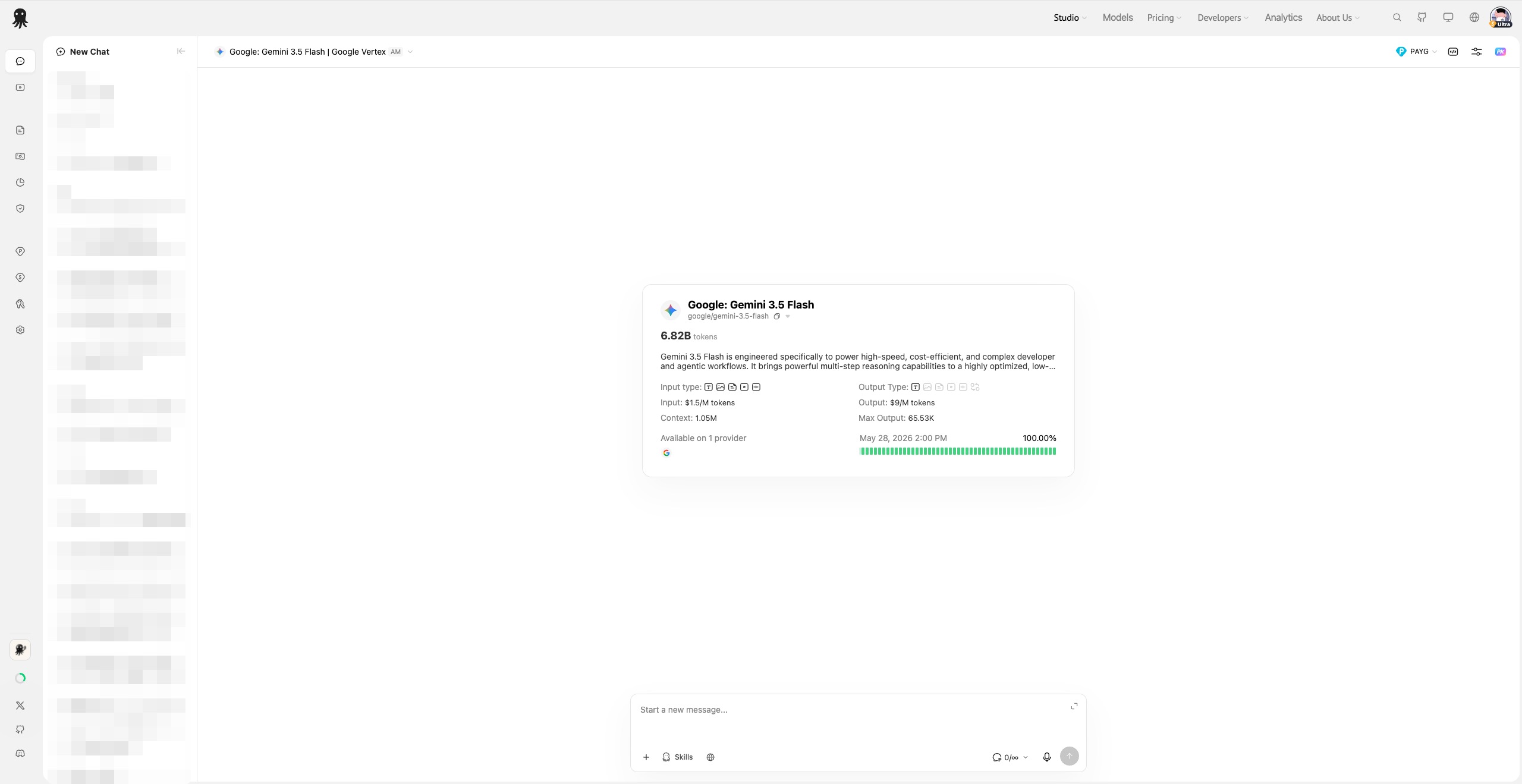
Studio-Chat is 开桥's intelligent conversational workspace. It supports multi-model chat, PK comparison, multimodal file input, Artifacts generation, web search, image generation/editing, voice input/output, and switching between subscription and pay-as-you-go billing.
Different models and providers support different capabilities — the interface automatically enables or disables features based on the currently selected model.
Quick Start
- Visit Studio-Chat
- Type your question in the input box
- Press
Enteror click the send button - Wait for the model to respond; click the stop button to interrupt generation
Common input methods:
| Action | Method |
|---|---|
| Send message | Enter |
| New line | Shift + Enter |
| Stop generating | 点击the stop button to the right of the input box |
| Fullscreen edit | 点击the expand button at the top-right of the input box |
| Paste image | Copy an image, then paste directly in the input area |
| Drag & drop file | Drag a file into the input area |
When entering Studio-Chat from a model detail page, the selected model is automatically applied. You can also specify a model via the model parameter in the URL; multiple model slugs separated by commas will create multiple PK windows directly.
Interface Layout
Studio-Chat consists of four main areas:
| Area | Description |
|---|---|
| Left sidebar | Create new chats, browse history, group sessions, pin, rename, and delete |
| Model bar | Select models, switch billing mode, view API examples, configure parameters, enable sync, add PK windows |
| Message area | Displays user messages, model replies, reasoning content, citations, usage stats, and log access |
| Input area | Enter text, upload files, select Skills, record voice, send/stop |
On mobile, a more compact sidebar and floating history panel are used.
In an empty conversation, the current model's detail card is displayed so you can confirm its capabilities, pricing, and context length before sending a message.
Selecting a Model
点击the model name to open the model selector. The selector supports:
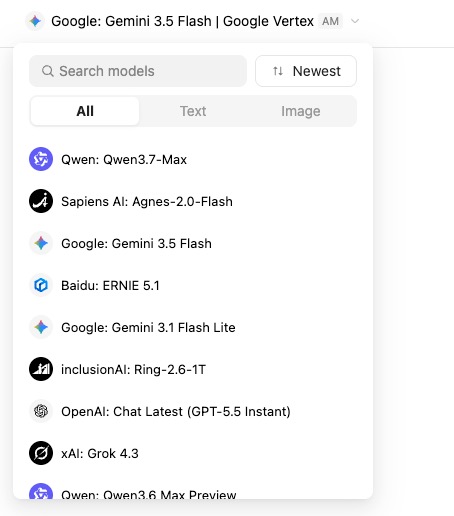
- Searching by model name
- Sorting by popularity or custom rules
- Filtering by output type: All, Text, Image
- Viewing model detail cards with context length, input/output modalities, pricing, provider, availability, and more
- Choosing between standard models and auto-routing models
The current provider is shown next to the model name. After switching models, Studio-Chat recalculates the supported file types, output types, and available Skills.
Input Area
The input area supports text, multimodal attachments, Skills, and voice recording. Each PK window has its own independent input area; when sync is enabled, text, attachments, and some Skills are synchronized across participating windows.
Key capabilities:
- Attachments appear above the input box, showing file name, type, and a remove option
- Images can be added via upload, drag-and-drop, or paste
- For longer content, click the expand button to enter fullscreen editing
- When the send button is disabled, hovering reveals the reason — 例如, empty input, generation in progress, or browser storage full
- While the model is generating, the send button switches to a stop button
Skills
The Skills menu to the left of the input box shows the capabilities available for the current model. Unavailable capabilities are grayed out or hidden.
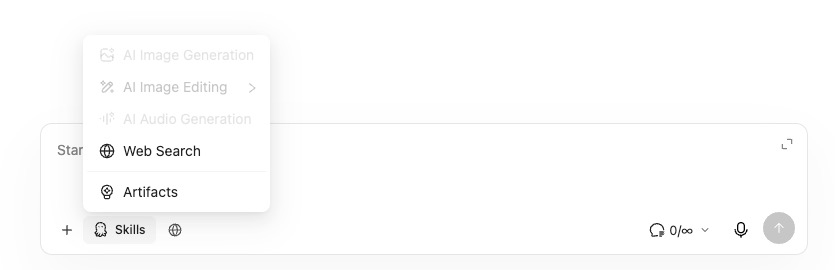
| Skill | Description |
|---|---|
| AI Image Generation | Generate images with models that support image output |
| AI Image Editing | Perform basic edits on images |
| AI Image Cutout | Remove backgrounds or extract subjects from images |
| AI Audio Generation | Available for models with audio output; actual output depends on model capabilities |
| Web Search | Let search-capable models fetch the latest information online |
| Artifacts | Generate standalone content that can be previewed, copied, and downloaded |
The Skills menu automatically determines availability based on model capabilities. It's recommended to enable only the skills relevant to your current task. Web search can be used alongside text chat and some multimodal tasks — availability depends on the current model.
Artifacts
Artifacts are ideal for generating reusable content such as interactive web pages, Markdown documents, SVG graphics, and Mermaid diagram code.
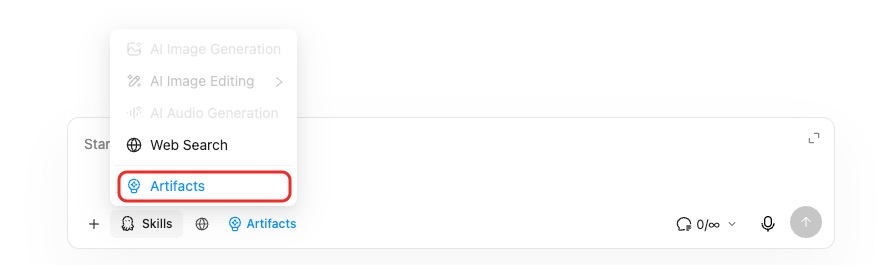
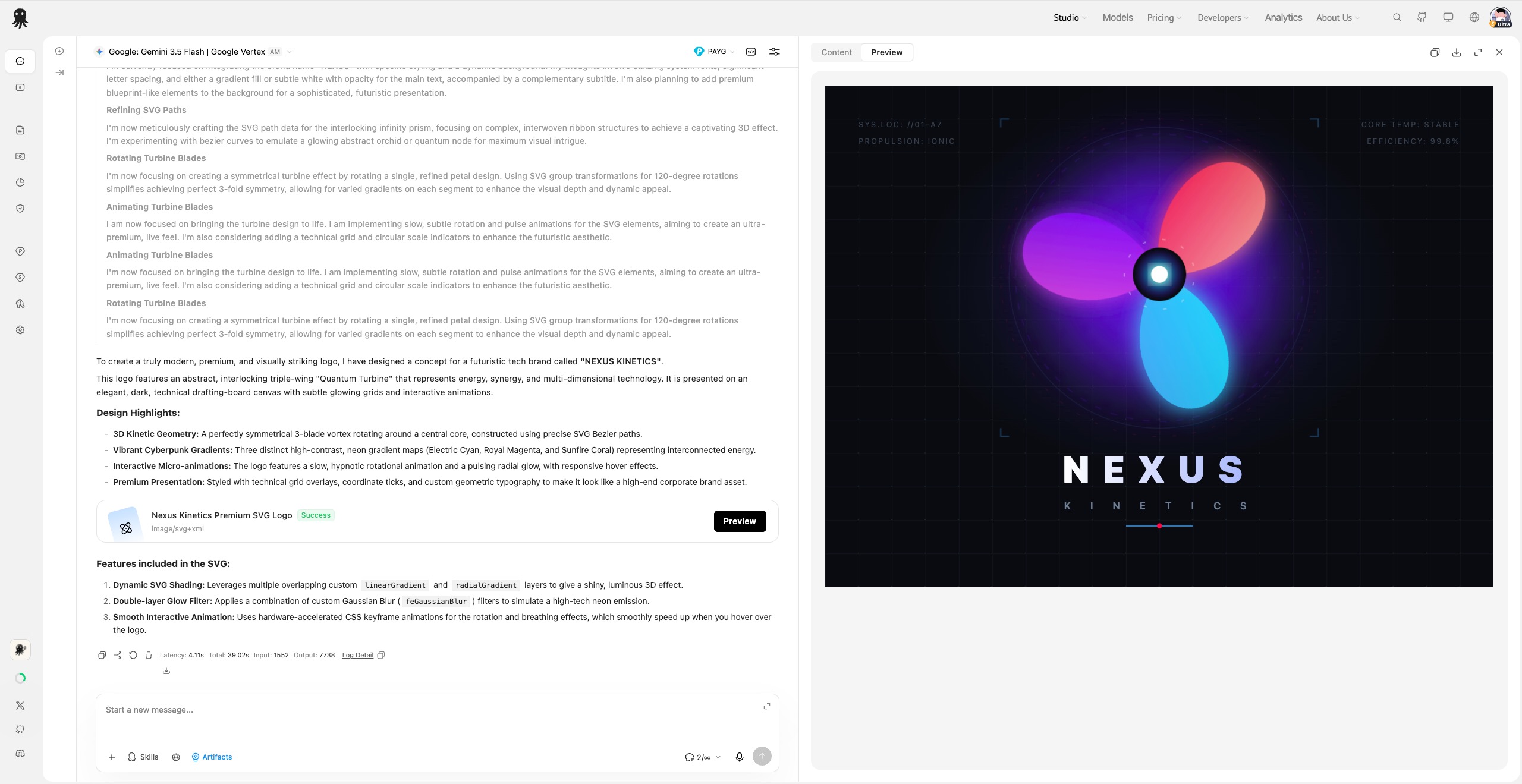
How to use:
- Enable Artifacts in Skills
- Describe your request — for example, "Create a project flowchart" or "Build an interactive HTML page"
- After the model generates the Artifact, an Artifact card appears in the message
- 点击the card or the Preview button to open the Artifact panel on the right; on mobile, it opens as a drawer
Supported Artifact types:
| Type | MIME Type | Description |
|---|---|---|
| Markdown | text/markdown | Documents, reports, structured text |
| HTML | text/html | Single-file HTML/CSS/JS interactive content |
| SVG | image/svg+xml | Vector graphics |
| Mermaid | application/vnd.mermaid | Mermaid diagram code |
The Artifact panel supports:
- Switching between content and preview
- Copying content
- Downloading as the corresponding file type
- Fullscreen preview
- Closing to return to the normal chat view
Web Search
Web search allows the model to retrieve information from the internet while answering your questions.

How to use:
- Select a model and provider that support search
- Enable Web Search in Skills
- Send your question
If the current provider supports web_search_options or the Google Search tool, the web search entry will be available. When enabled, the model uses the corresponding search tool in requests; source links and citations depend on what the model actually returns.
Conversation Memory
Conversation memory controls how many history messages are sent with each request — useful for reducing context overhead in long conversations.
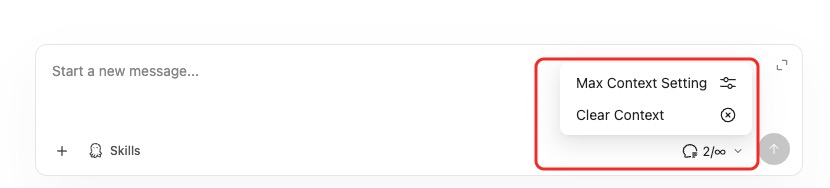
The input area shows the current context count, such as 8/∞ or 6/20. Clicking this entry lets you:
- Open the maximum context settings
- Clear the current context by inserting a New Session divider at the current position
- See whether all messages or only the most recent N messages will be sent
You can also adjust conversation memory in the advanced parameters panel. In PK sync mode, changing the context settings for a synced window applies to all other synced windows.
Image Generation & Editing
Models that support image output will display image-related Skills.
Image Generation
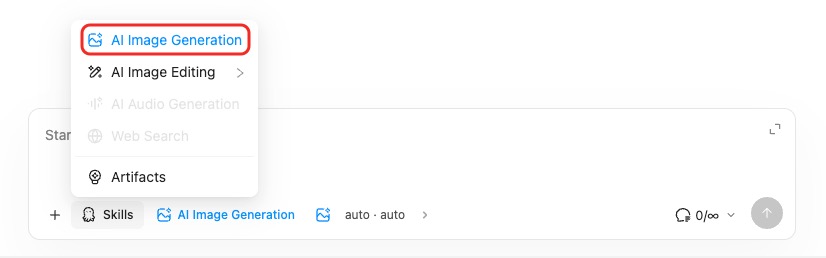
- Select AI Image Generation in Skills
- Enter an image description
- Send and wait for the image to be generated
- The result can be previewed, downloaded, or used for further editing
Some Google / Nano Banana image models support image configuration:
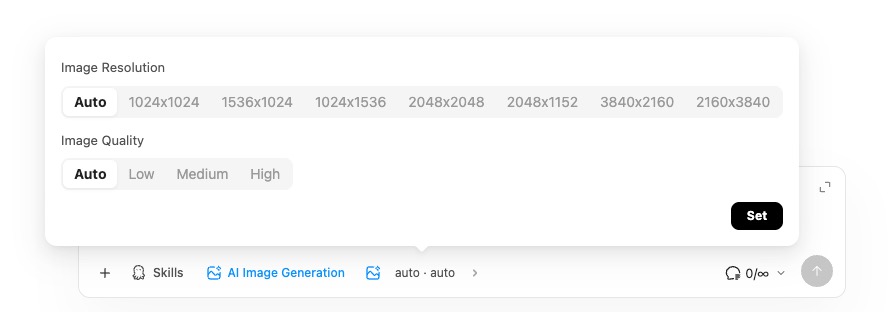
| Parameter | Options |
|---|---|
| Image Aspect Ratio | Default options include 1:1, 2:3, 3:2, 3:4, 4:3, 4:5, 5:4, 9:16, 16:9; actual options depend on model configuration |
| Image Resolution | Default options include 1K, 2K, 4K; actual options depend on model configuration |
| Image Quality | Only shown when the model provides a quality configuration |
Image Editing
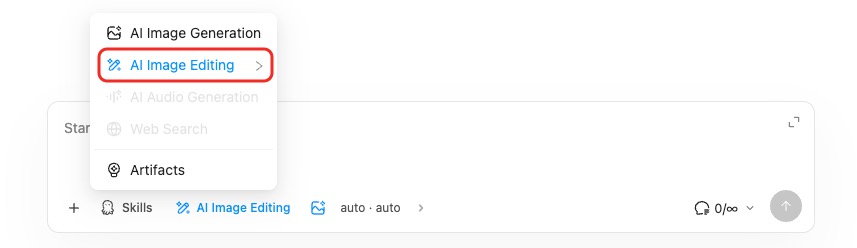
- Upload an image, or use an image generated in the previous turn
- Select an editing mode in Skills
- Enter your editing instructions
- Send and view the edited result
| Mode | Status | Description |
|---|---|---|
| Basic Edit | Available | Modify image content, style, or specific elements |
| Cutout | Available | Remove backgrounds or extract subjects |
File Upload
点击the attachment button to the left of the input box to upload files. Drag-and-drop and image pasting are also supported.
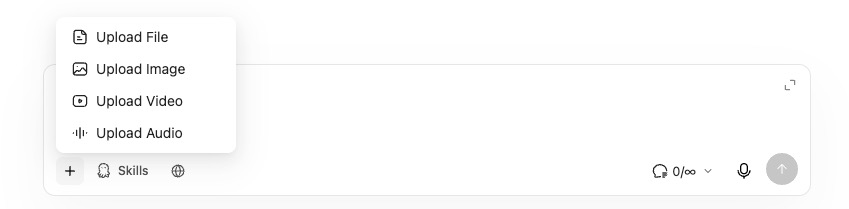
File capabilities are determined by the current model — Studio-Chat automatically filters out unsupported attachment types.
| Type | Formats |
|---|---|
| Images | .jpg, .jpeg, .png, .gif, .webp |
.pdf | |
| Text/Code | .txt, .md, .csv, .json, .xml, .html, .htm, .markdown, .ts, .java, .c, .cpp, .cs, .go, .php, .rb, .swift, .sql, .yaml, .ini, .css |
| Audio | .mp3, .wav |
| Video | .mp4, .avi, .mov, .mpeg, .webm |
After uploading, attachment cards appear in the input area or message:
- Images: display thumbnails with full-size preview
- Audio: shown as a player after sending
- Video: clickable for preview playback after sending
- PDF, text, and code files: display file name and type, sent to the model for analysis
Voice Input & Output
Voice Input
When the model supports audio input, a recording button appears to the right of the input box.

- 点击the recording button to start
- 点击again or stop — the recording uploads as an audio attachment
- The audio is submitted along with the message when you send
In PK sync mode, the recording state is synchronized across synced windows.
Voice Output
When the model supports audio output, an AI Audio Generation entry appears in Skills. After the model returns an audio file, a playable audio control is displayed in the message.
PK Mode
PK mode lets you compare responses from multiple models side by side.
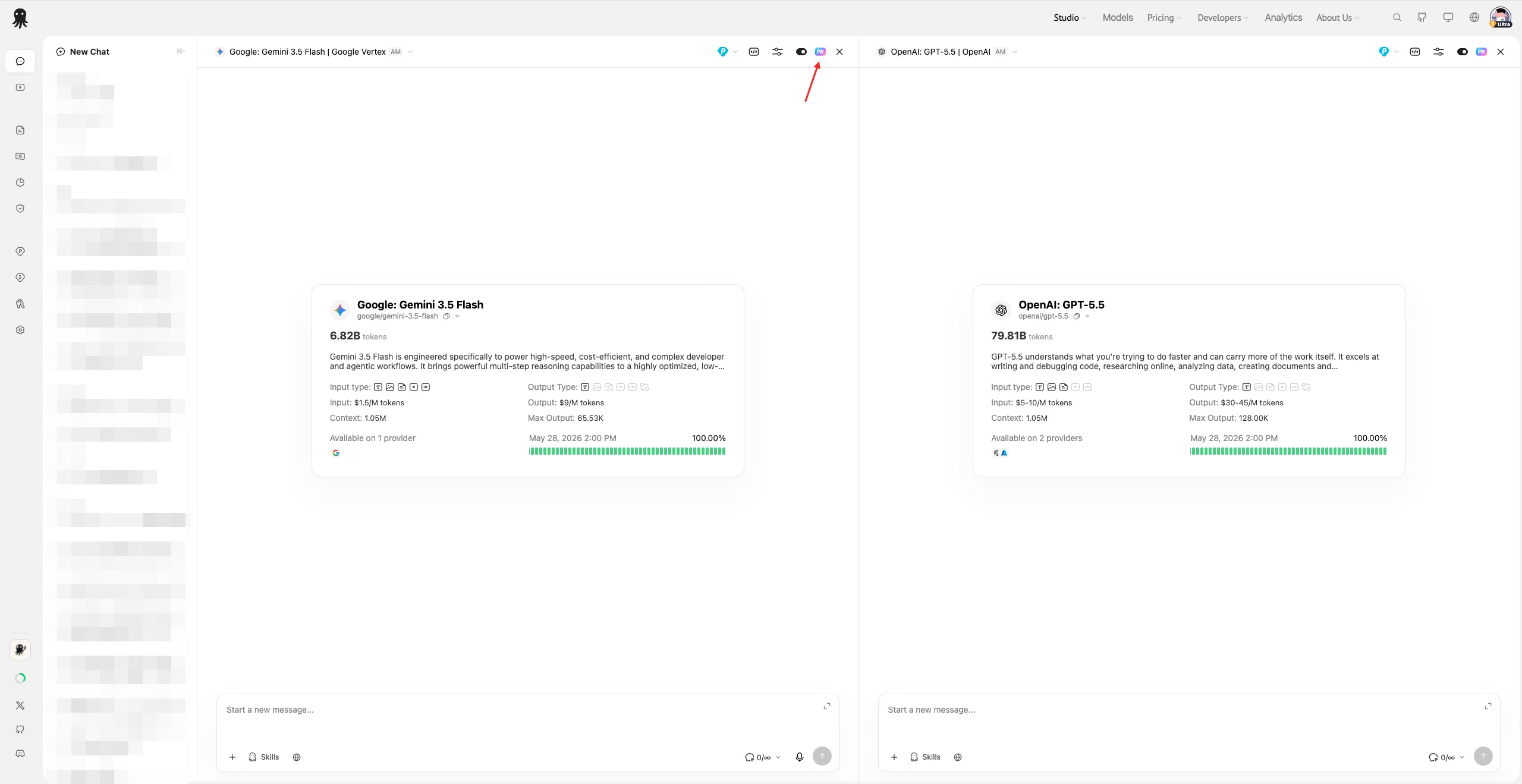
- 点击the PK add button in the model bar
- The new window copies the model configuration from the last window
- Each window can independently select its model, provider, parameters, and billing mode
- Up to 10 windows are supported
Each window has a sync toggle:
| Status | Behavior |
|---|---|
| Sync On | Sending a message from any synced window delivers the same question, files, and Skills to all synced windows |
| Sync Off | The window operates independently and does not participate in synchronized sending |
点击the remove button on a window to close it; when only one window remains, it automatically returns to single-window mode. If any synced window is generating, other synced windows enter a waiting state to prevent duplicate submissions.
API Call Examples
点击the code icon in the model bar to open the code integration dialog.
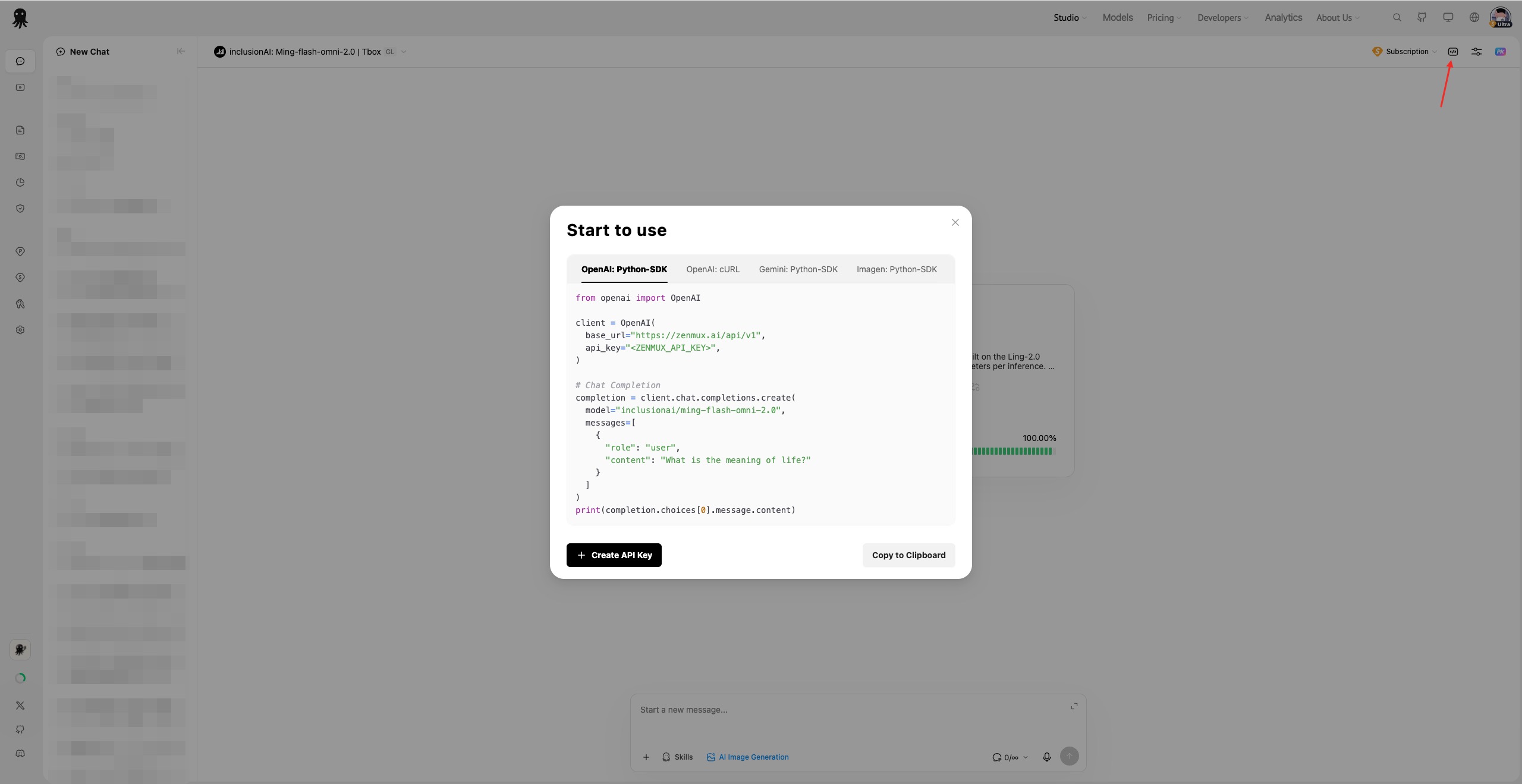
The dialog shows copyable call examples based on the current model and protocol, including:
- OpenAI Chat Completions
- OpenAI Responses
- Anthropic Messages
- Gemini / Vertex AI
- Imagen / Images
- Auto-routing model examples
At the bottom, you can copy the code or navigate to the Pay As You Go page to create an API key.
Advanced Parameters
点击the settings icon in the model bar to configure model parameters.
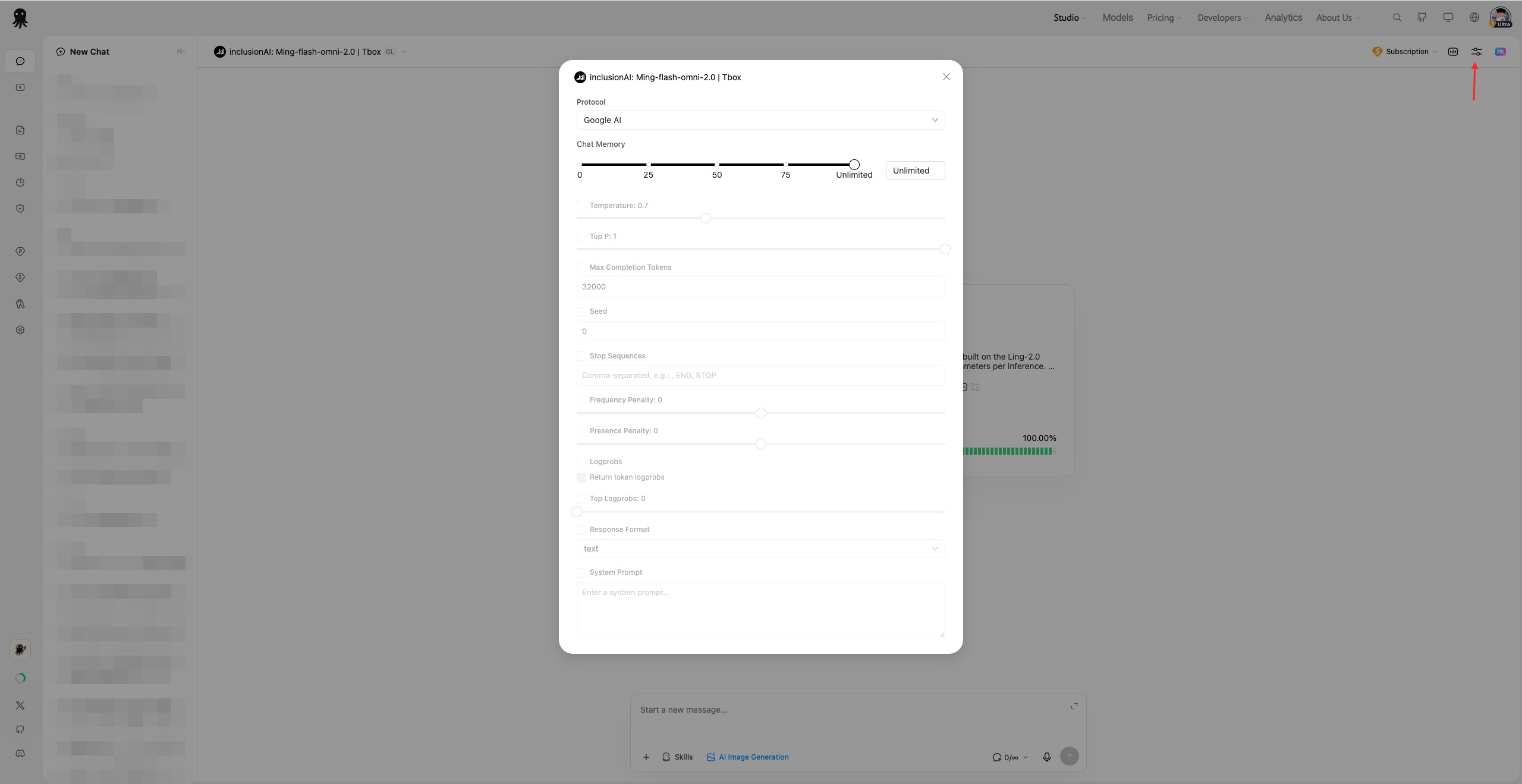
| Parameter | Description |
|---|---|
| Protocol | Select the API protocol; only shown when the model supports multiple protocols |
| Endpoint | Select the provider/endpoint; only shown when multiple endpoints are available |
| System Prompt | Define the model's role, tone, and behavioral constraints |
| Conversation Memory | Control whether all history or only the most recent N messages are sent per request |
| Reasoning Effort | Set reasoning intensity — 例如, low, medium, high, xhigh |
| Thinking Budget | Set the thinking budget in tokens; some models enable this by default or require it |
| Max Output | Control Max Tokens or Max Completion Tokens |
| Randomness | Adjust Temperature, Top P |
| Penalties | Adjust Frequency Penalty, Presence Penalty, Repetition Penalty |
| Seed | Set a random seed for more deterministic output |
| Stop Sequences | Define stop sequences |
| Logprobs | Return token logprobs; Top Logprobs can be configured when supported |
| Response Format | Choose text, JSON Object, or other response formats |
Advanced parameters are automatically shown, enabled, or disabled based on the current model, protocol, and endpoint's supported_parameters. Some models require reasoning to be enabled, in which case the toggle is locked. Under the Google protocol, Reasoning Effort and Thinking Budget are mutually exclusive based on model capabilities.
Billing Mode
Studio-Chat supports two billing modes:
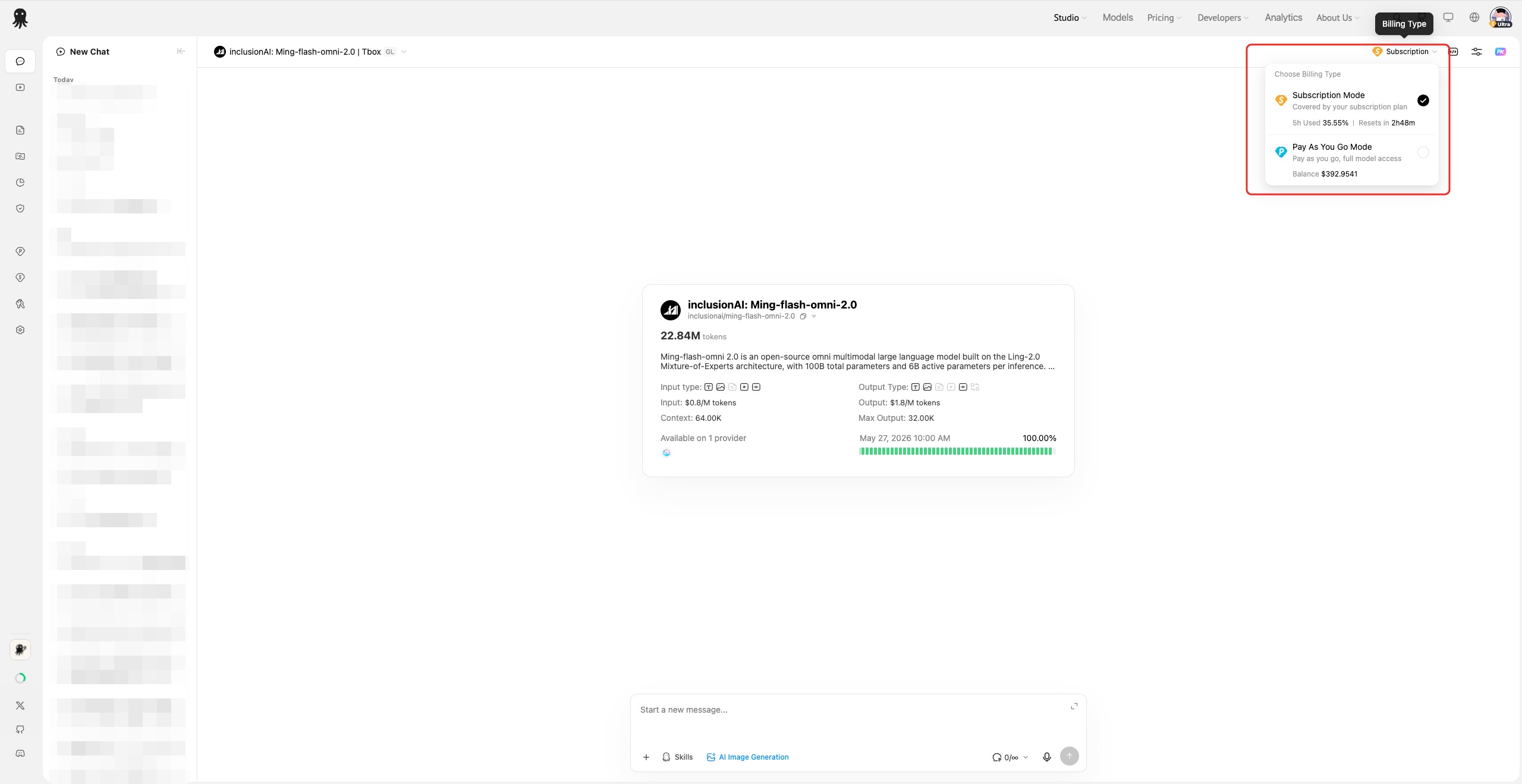
| Mode | Description |
|---|---|
| Subscription | Uses your subscription plan quota; only applies to models covered by your plan |
| Pay As You Go | Uses your account balance, billed per request |
To switch:
- 点击the billing icon in the model bar
- Select Subscription or Pay As You Go
The billing menu displays your current subscription quota usage, reset time, and pay-as-you-go balance. Values are highlighted when usage or balance is running low.
If the current model is not included in your subscription plan, subscription mode will be unavailable or will automatically switch to pay-as-you-go. When selecting a higher-tier model, the page will prompt you to upgrade your subscription.
When your subscription quota is exhausted, the page will suggest switching to pay-as-you-go; non-free subscribers can also enable Extra Usage. If your pay-as-you-go balance is insufficient, a free model is rate-limited, or a premium model requires a balance, the page will prompt you to top up.
Quick Navigation
On desktop, when a single window contains 3 or more user messages, quick navigation appears on the right side of the message area.
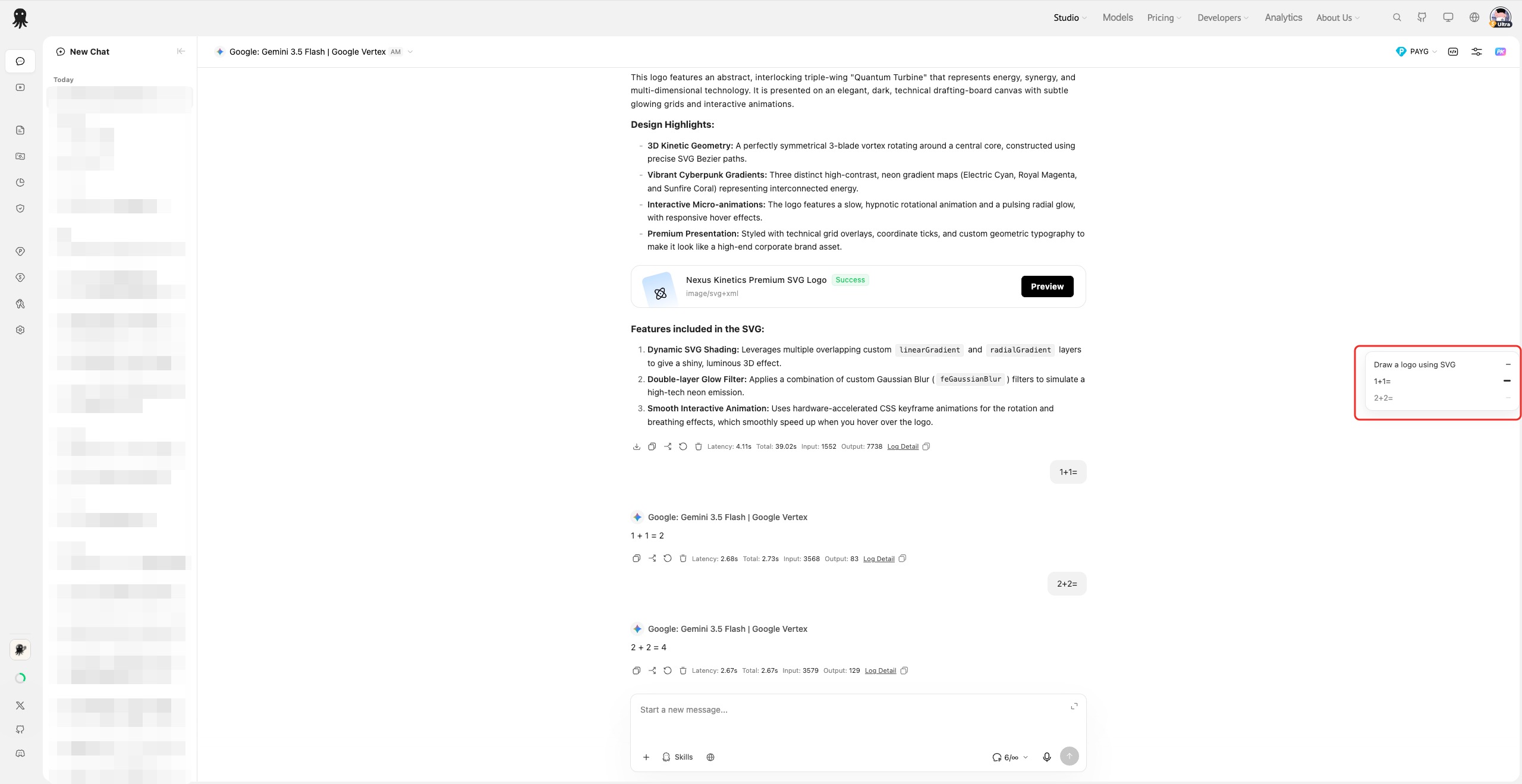
- Navigation items use the user message content as titles
- 点击an item to jump to the corresponding turn
- The current turn is automatically highlighted as you scroll
- When manually scrolling up through history, a "scroll to bottom" button appears
Message Actions
Common actions are displayed below each message. While the model is generating, action buttons on the current message are hidden; actions on other messages in the same window are temporarily grayed out and restored when generation finishes.
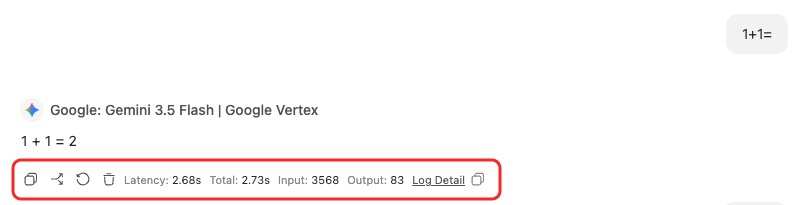
| Action | Description |
|---|---|
| Copy | Copy message text; available for both user messages and model replies |
| Edit | Edit a sent user message and regenerate based on the updated content |
| Fork | Branch the conversation from the current message; supports Fork to New Chat and Fork to PK (when fewer than 10 PK windows exist) |
| Retry | Regenerate the model reply using the same question and configuration |
| Download | Download generated images, Artifacts, or other file results |
| Delete | Delete the current turn; both the user message and model reply are removed together |
| Log Details | Open the request log details and copy the Request ID |
Long user messages are automatically collapsed and can be expanded to view the full content. When editing a user message, you can modify the text, remove or add attachments, then resend.
Below the model reply, usage information is displayed — including latency, total time, input tokens, and output tokens. Models that support reasoning show a "Deep Thinking" section that can be expanded or collapsed. When a request fails, the message displays the error status code, error type, Request ID, and response details.
Session Management
The left sidebar displays chat history, grouped by time:
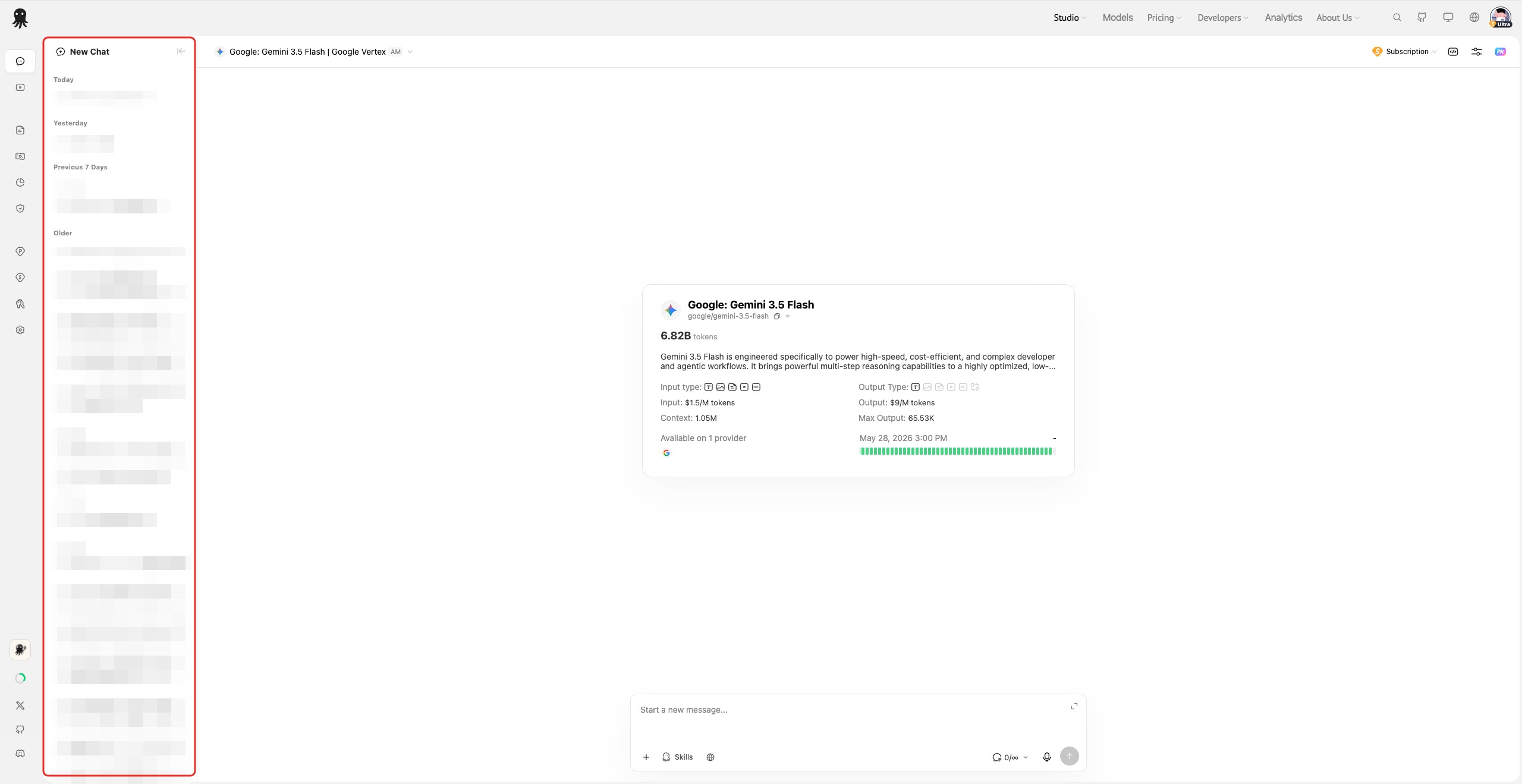
- Pinned
- Today
- Yesterday
- Last 7 Days
- Older
Supported session actions:
- Create a new chat
- Switch between historical sessions
- Double-click a session name to rename
- Pin / unpin
- Delete a session
- Expand / collapse the sidebar
- View session status: local, cloud, or syncing
New sessions are saved to the server when the first message is sent. Session titles default to the first message content. If an auto-summarization model is configured in privacy settings, the system will automatically generate a more suitable title once the conversation has enough content. When switching sessions, the model bar attempts to restore the model and provider used in the session's most recent reply.
If the current session is actively generating, a confirmation prompt appears before switching. When opening a session link that belongs to another user, the system prompts whether to copy it to your own history.
FAQ
Q: Why are some Skills or upload types unavailable?
A: Studio-Chat automatically determines capabilities based on the current model's input/output modalities and provider parameters. Unsupported features are grayed out, hidden, or filtered before sending.
Q: How many models does PK mode support?
A: Up to 10 model windows.
Q: Why can't I select subscription mode?
A: The current model may not be included in your subscription plan. You can switch to pay-as-you-go or upgrade to a plan that covers the model.
Q: Why is web search not available?
A: Web search is only available when the current model and provider support search parameters or the Google Search tool.
Q: Does image editing require uploading an image?
A: Typically yes. If the previous turn produced a generated image, some image models will automatically use it as the editing input.
Q: Is there a file size limit for uploads?
A: Yes. The specific limit depends on the upload service, file type, and current model capabilities. If a file type is not supported by the model, it will be filtered when sending.